
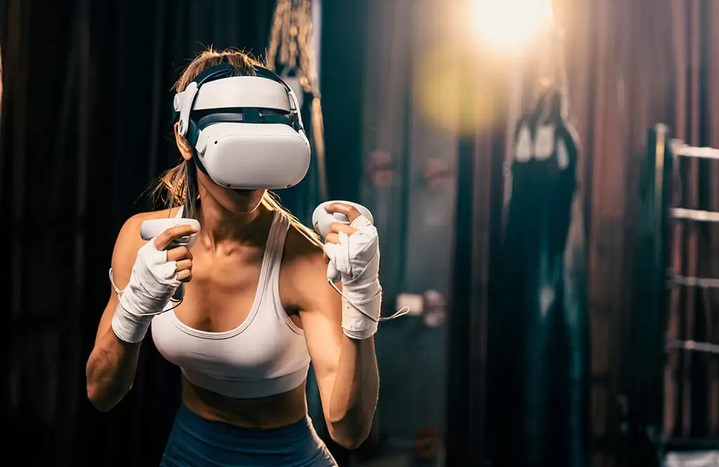
During a field evaluation with an elite collegiate football team, I watched a star quarterback stand motionless in the center of an indoor training facility. He wasn’t throwing a ball, nor was he wearing pads. Instead, he was wearing a lightweight spatial headset, tracking a blitzing defense coming from his blind side at 90 frames per second. In less than twenty minutes, he ran 45 complex defensive read scenarios—a volume of reps that would have taken three days of grueling, high-impact field practice to replicate.
Over my ten-plus years working at the intersection of technology, health systems, and human performance, I have watched spatial computing shift from a questionable gimmick into a core competitive pillar.
Modern VR sports training platforms are no longer just video games with motion controls. They are high-precision cognitive laboratories designed to sharpen decision-making, accelerate injury rehabilitation, and build muscle memory without physical wear and tear.
If you are an athlete, coach, or sports tech enthusiast curious about how virtual environments translate into real-world wins, this deep dive explains the science, systems, and practical realities of training in virtual worlds.
The Cognitive Edge: Why Physical Reps Aren’t Enough
For decades, athletic development followed a simple formula: work harder, run longer, and lift heavier. However, peak athletic performance is rarely limited by physical conditioning alone—it is bound by perceptual-cognitive speed.
An elite soccer striker or tennis player doesn’t react faster because their muscles move at superhero speeds; they react faster because their brain recognizes visual micro-cues milliseconds before the opponent executes a move. Traditional film study is static, while live scrimmages carry physical fatigue and injury risks. VR sports training bridges this gap by offering high-density, low-impact cognitive reps.
The Flight Simulator Analogy for Elite Sports
To understand why spatial repetition works, think of athletic development like commercial pilot training:
-
Traditional Scrimmages (Live Flight): Crucial for feeling true environmental conditions, but expensive, physically taxing, and limited by environmental variables (weather, player availability, fatigue).
-
Film Study (Flight Manuals): Essential for strategy, but completely passive. Watching a play on a flat screen lacks depth perception and spatial awareness.
-
VR Sports Training (Full-Motion Flight Simulator): Places the athlete directly in the cockpit. You face high-pressure scenarios, make instant split-second reads, and build neural pathways without risking physical crash damage or overtraining injuries.
+-----------------------------------------------------------------------+
|                 TRADITIONAL PRACTICE VS. VR TRAINING                  |
+-------------------+-------------------+-------------------------------+
| Dimension         | Field Scrimmages  | VR Sports Training            |
+-------------------+-------------------+-------------------------------+
| Repetition Volume | Low to Moderate   | Ultra-High (100+ reps/hour)   |
+-------------------+-------------------+-------------------------------+
| Physical Impact   | High Wear & Tear  | Zero Physical Stress          |
+-------------------+-------------------+-------------------------------+
| Data Tracking     | Qualitative / Video| Millimeter-level Biometrics  |
+-------------------+-------------------+-------------------------------+
| Scenario Control  | Unpredictable     | 100% Deterministic & Repeatable|
+-------------------+-------------------+-------------------------------+
| Rehab Suitability | Unsafe during injury| Ideal for active cognitive rehab|
+-------------------+-------------------+-------------------------------+
Key Technological Pillars in VR Sports Platforms
Behind every successful immersive session lies a complex hardware and software stack designed to fool the human nervous system. Three primary architectural breakthroughs power modern VR sports training setups.
1. Sub-10 Millisecond Motion-to-Photon Latency
In casual gaming, a slight delay between moving your hand and seeing the virtual visual update is a minor nuisance. In high-speed sports—such as tracking a 95-mph baseball pitch or a 120-mph tennis serve—any latency above 15–20 milliseconds ruins the brain’s hand-eye coordination calibration.
Modern enterprise VR headsets utilize high-frame-rate displays (120 Hz+) coupled with predictive tracking algorithms to keep sub-10ms system latency, ensuring visual feedback mirrors real-world physics accurately.
2. High-Precision Biometric and Kinematic Tracking
VR systems don’t just render graphics; they record biometric telemetry. Integrated eye-tracking modules monitor an athlete’s visual saccades—revealing exactly where a player looks, how long they stare before committing to a decision, and whether they miss subtle spatial cues.
Sub-millimeter controller and body-tracking peripherals capture joint angles, velocity profiles, and rotational mechanics, feeding data directly into biomechanical analytics dashboards.
3. Haptic Feedback and Force Emulation
To build true motor memory, visual feedback must be paired with tactile response. Specialized haptic controllers and gloves utilize micro-actuators that simulate impact resistance—letting a batter feel the exact point of contact on a virtual swing or a quarterback feel the tactile release of a football.
Practical Applications: Where Athletes Win with VR
Throughout my years consulting on healthtech and human performance technologies, I have seen immersive platforms deliver game-changing outcomes across three core domains:
1. High-Density Tactical Decision Training
Quarterbacks reading defensive coverages, basketball guards executing pick-and-roll reads, and soccer midfielders scanning for open passing lanes can drill identical plays repeatedly. Coaches can feed actual game film into 3D rendering engines, letting players practice against their upcoming weekend opponent’s exact defensive formations.
2. Return-to-Play (RTP) Rehabilitation
The mental toll of an injury is often as severe as the physical damage. When an athlete tears an ACL or breaks a bone, they are sidelined from physical practice for months, losing spatial timing and reaction speed.
VR allows injured athletes to maintain cognitive conditioning. A injured point guard can sit safely in a chair wearing a headset, making virtual passing reads and keeping their visual processing speed sharp while their leg heals.
3. Neuro-Cognitive Conditioning & Pressure Inoculation
By introducing simulated crowd noise, visual distractions, and high-pressure game clocks inside the virtual environment, sports psychologists use VR to build mental resilience. Athletes learn to regulate their heart rate and focus under intense pressure before stepping onto the field.
Expert Insights: Implementation Tips and Common Pitfalls
Adopting spatial technology into an athletic program requires a structured strategy. Here are battle-tested insights from field rollouts:
💡 Pro Tip: Focus on Visual Reading, Not Full Physical Replication
Use VR sports training primarily for perceptual-cognitive development—predicting ball flight, reading opponent body orientation, and spatial awareness—rather than trying to replace heavy weight-training or full physical mechanics. The sweet spot of VR is training the brain to process field information faster.
⚠️ Hidden Warning: Beware of Mechanics Disruption
If a VR simulation lacks proper physical weight or haptic resistance, athletes can inadvertently develop flawed biomechanical habits. Always ensure that swing or throw mechanics in VR are validated against real-world video capture data to prevent bad muscle memory from bleeding onto the physical court.
The Future of Virtual Athletic Performance
As generative AI engines pair with spatial computing, we are moving toward real-time adaptive VR simulations. Soon, virtual opponents will adapt dynamically to an athlete’s personal weaknesses—forcing them to continually adjust their strategy in real time.
Virtual reality has officially moved past the stage of novelty tech. It is now a foundational tool for teams and individual athletes looking to squeeze every possible millisecond of cognitive advantage out of their preparation routine.
How Are You Leveraging Sports Tech?
Have you ever tried virtual reality for skill development, or are you considering implementing VR tools into your coaching or personal athletic routine?
Share your thoughts and questions in the comments below! Let’s discuss how spatial technology is changing the game for the next generation of athletes.
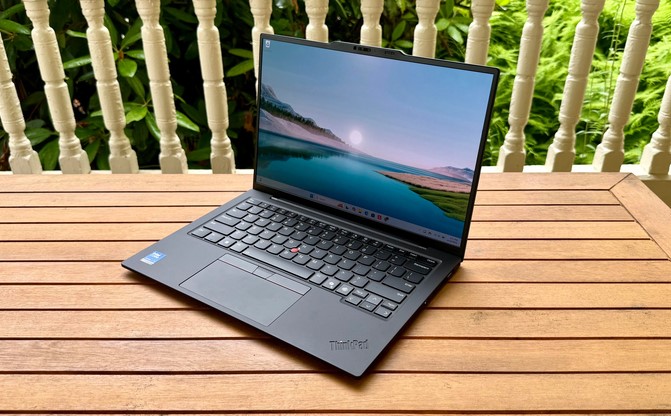 I still remember standing in the security line at Chicago O’Hare back in 2018, desperately scanning the terminal for a wall outlet while my 4.5-pound workstation laptop sat dead in my bag. My back was aching, the heavy brick charger was tangled around my wrist, and I had a remote healthcare systems deployment meeting starting in fifteen minutes.

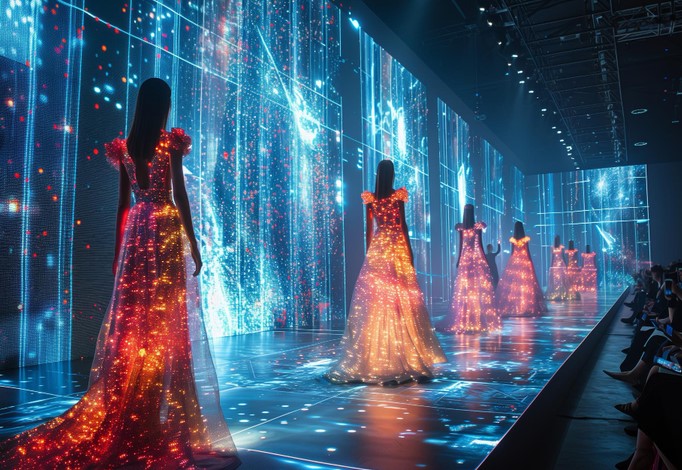 Imagine standing in the front row of a high-fashion runway show in Paris. Models glide past you wearing garments made of shimmering liquid chrome and floating starlight—materials that physically cannot exist in the real world. You aren’t squeezed into an overcrowded venue or fighting for a view behind a celebrity’s hat. You are sitting in your living room, wearing a lightweight headset, experiencing full spatial audio and 360-degree immersion.